MUDDUCK BOARDS - POSTING FAQS AND TIPS
Posting Tips:
- How do I get started posting?
- What is Enhanced Posting?
- How do I post a link?
- How do I post an image?
- What does the Include Quote box do?
General FAQs:
- How do I get a personal icon?
- What does the Clear Icons button do?
- What is the Compressed threads box for and how do I use it?
- What does a Gold Star beside a post mean?
- What does a Red Star beside a post mean?
- Can I self delete my own post?
- Can I block everyone's signatures from appearing in posts?
- Can I block all graphics from appearing in posts?
- What is the "Keepers" page?
Troubleshooting:
- I lost my password. What do I do?
- My personal icon is no longer showing up!
- I don't see a place from which I can upload my icon.
- Why do I have to click on the Clear Icons button twice to make it work?
- Why is Enhanced Posting Not Working For Me?
How do I get started posting?
To start posting, you
must first register in the profile center (/users/profiles2.pl) a link to the
profile center is on top of the board. In doing this you provide a password
and username (or alias) which will be used to protect your identity when
posting.
To access the profile center, click the "Profile Center" link at the top of the Mudduck board:
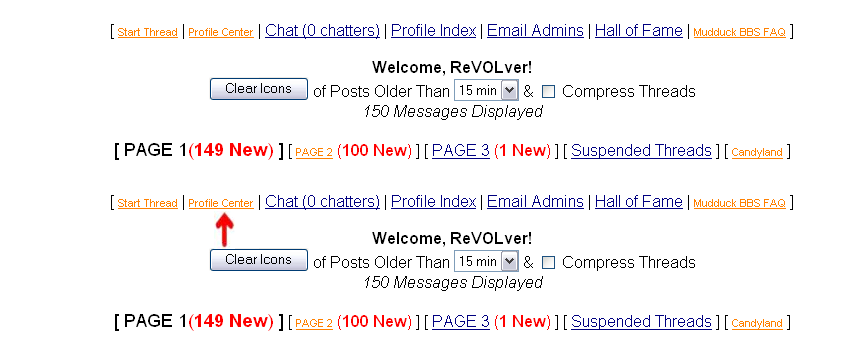
Clicking this link will take you to the Profile Center entry point. Note the board rules that are displayed on this page.
At the bottom of the page, there are boxes for you to input your board name and password.
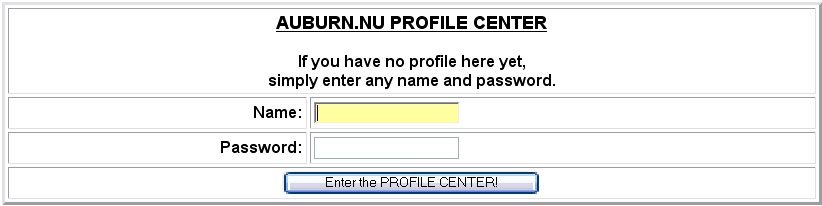
NOTE: If you are new to the board in question, simply input the name of your choice and the password of your choice. As long as your chosen name is not already taken, this is all of the registration that is needed. After selecting options in the Profile Center, you MUST click the "Modify Profile" button at the bottom of the screen for changes to take effect.
What is Enhanced Posting?
Enhanced posting is a
javascript modification to the posting page that allows many advanced features
such as spell checking your message, changing fonts and colors, adding graphics
and links automatically. It writes HTML into the box in a WYSIWYG (what you see
is what you get) manner. You must allow javascript in your browser and your
browser must be compatible with the javascript code. These features are
client-side. This means the code runs on your computer and not the server.
To enable enhanced posting, select the "Enhanced Posting" checkbox at the bottom of the page in the Profile Center:

When enhanced posting is enabled, your post screen should look like this:
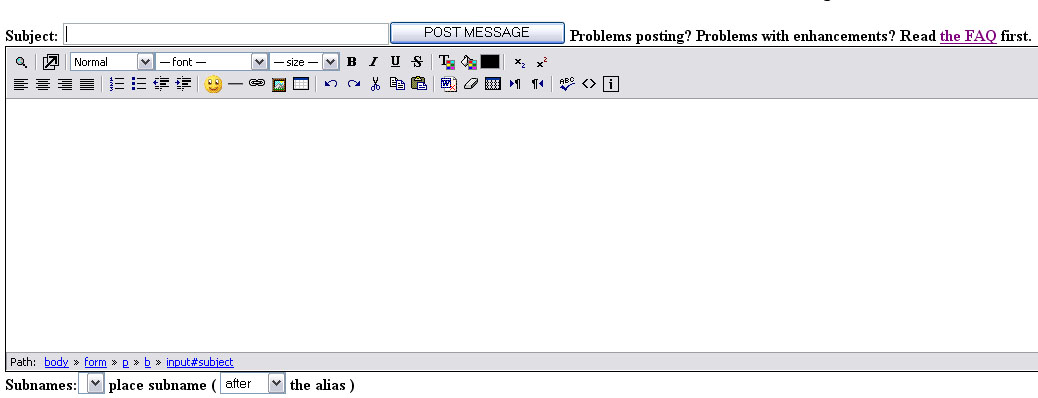
When enhanced posting is not enabled, your post screen should look like this:
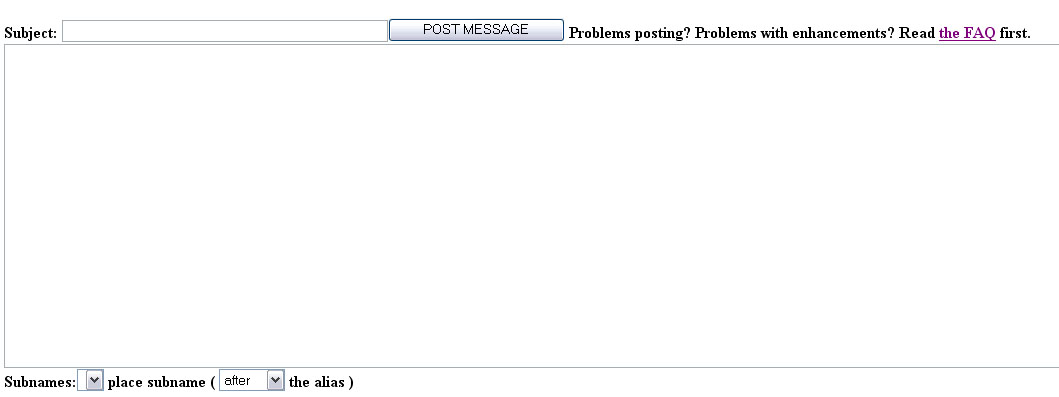
How do I post a link?
Mudduck BBS provides many ways
to post a link. If you are using enhanced posting you can post a link by
clicking on this  button after you have highlighted the text you
wish to use as an anchor. So highlight text first then click the button.
Step 1: Type and highlight text that you wish to display for the link:
button after you have highlighted the text you
wish to use as an anchor. So highlight text first then click the button.
Step 1: Type and highlight text that you wish to display for the link:

Step 2: Click the link () button on the enhanced posting toolbar
Step 3: Input the address of your link into the URL box.
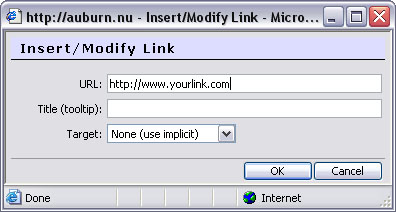
You may optionally declare a Title, or tooltip, which is a description that will show up when a user hovers over the link with their mouse. You may also select the target destination of the link from the "target" dropdown; for our purposes, the only useful options are None (use implicit) and New window (_blank). None (use implicit) will open your link in the current browser window. New window (_blank) will open the link in a new browser window. Click OK to exit the hyperlink popup window.
Your link should now be formatted and ready for clicking.

You can
also paste a link directly into the box and enhanced posting will make it into a
link automatically. Allowing the script to autointerpret the link will result in the link being opened in the current browser window. If all of this fails, the original Mudduck link system will
still work, but only if you are not using enhanced posting. Simply add :link directly after the URL and the script convert it to
a link when you submit your message. Using the :link syntax will cause the link to open in a new browser window.
If you know html, you may also manually code your A HREF link by either using basic posting or entering text mode, which is achieved by pressing  on the enhanced posting toolbar.
How do I post an image?
Mudduck BBS provides many
ways to post a image. If you are using enhanced posting you can post a link by
clicking on this  button. In the box that comes up, enter the Internet address of the picture into the Image URL box. NOTE: The image must be located on an internet server. This is not an upload utility; you cannot post pictures from your local hard drive.
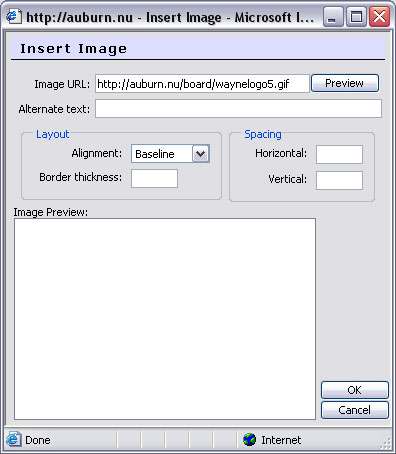
Clicking "Preview" will display the image in the preview pane:
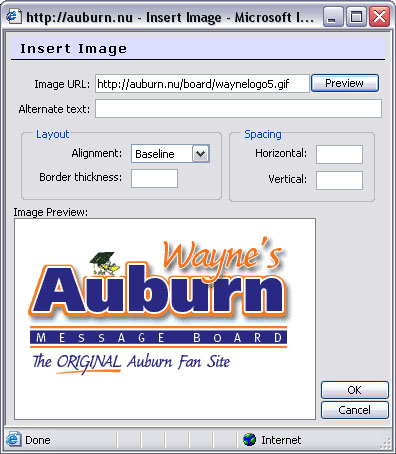
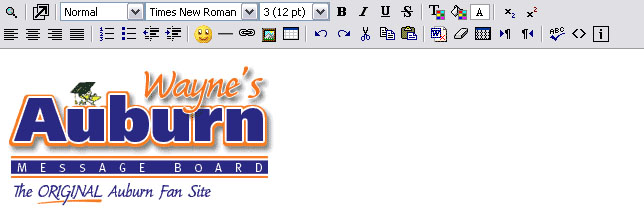
Click "OK" to return to the post screen and see your image.
If all of this fails, the original Mudduck link system will still work, but only if you are not using enhanced posting. Simply
add :pic directly after the URL and the script convert it to an image tag when
you submit your message. Again, images must reside on a web server and can not be
posted from your computer.
If you know html, you may also manually code your IMG SRC link by either using basic posting or entering text mode, which is achieved by pressing on the enhanced posting toolbar.
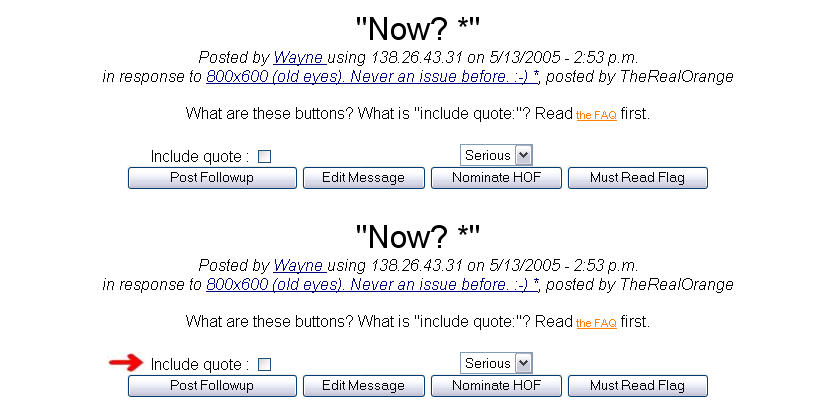
What does the Include Quote box do?
If you click on
this checkbox, it will include the text of the person to which you are
responding. This included text will show up in the post message box when you
begin writing your reply. In this way, you will have their words to use against
them. :-)
The box is located at the top of the post display screen:
How do I get a personal icon?
To get a personal icon
icon you must comply with the rules set down by the board. You can read these
rules when you enter the profile center (/users/profiles2.pl). Generally, they are
that you should have posted a set number of messages and that you have complied
with the various rules in the spirit in which they were intended. Once you have
reached the required number of posts (generally 100), a box will popup in the
profile center that will allow you to upload an icon. This icon must comport to
strict rules on size (how big the file is) and width and height. All personal
icons are subject to administration approval. You can request design assistance
from board participants.
Once you have met the minimum icon requirements for the board, the icon upload form will appear at the bottom of the profile center. Use the browse button to navigate to the location of your icon on your hard drive. Press "Upload Icon!" to submit the icon for approval.

What does the Clear Icons button do?
Mudduck BBS
allows a person to see what new messages have been posted since their last
visit. It does this through the use of cookies which are set when you hit the
board (if you allow them). These new messages are marked with the icon of each
individual poster as to show that they are new since your visit. You can then
vary the time from the present into the past that message will be marked in this
way. So if you click select "15 min" and hit "clear icons" all the messages that
have been posted in the last 15 minutes will be marked with icons.
The Clear Icons button is located at the top of each main board page.

What is the Compressed threads box for and how do I use
it?
Compress threads allows you to show only the first message in a
thread. In this way, you can shrink the size of the index page for viewing. You
can still follow the thread from inside the message itself. To engage this
feature click the compress threads checkbox and hit the "clear icons" button.
The Compressed Threads checkbox is located at the top of each main board page.

What does a Gold Star beside a post mean?
A gold
star beside a message means that another person on the board thought that
message was worthy of highlighting, as a way to point out the quality of the
post to other members. The button to do this is inside each message and is
called "Must Read Flag".
To mark a post as "Must Read", click the "Must Read" button, located at the top of the post display screen:
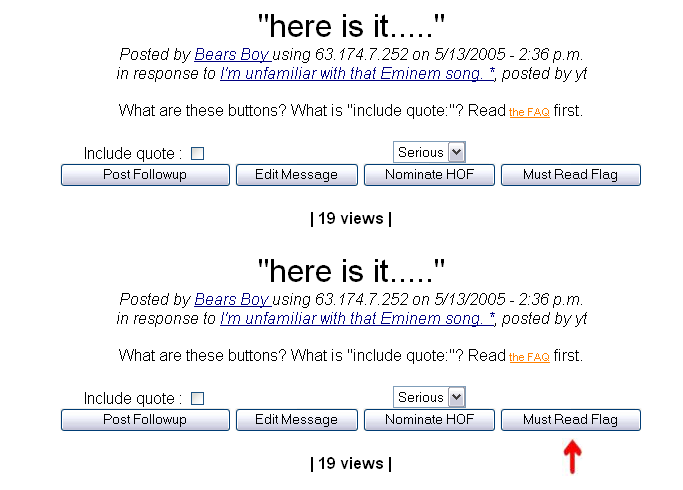
Note: You must be a contributing member to flag a post as "Must Read". The criteria for contributing members is determined by the webmaster of each individual board.
When a post is marked as "Must Read", it will appear on the board as follows:

If you are using Internet Explorer as your browser, you can hover over the gold star and see who flagged it. This function is not available when using Mozilla Firefox.
What does a Red Star beside a post mean?
A red
star beside a message means that a board Admin thought that the
message was worthy of highlighting, and is urging readers to view the post.
When a post is marked as "Must Read", it will appear on the board as follows:

Can I self delete my own post?
Yes! We encourage
it. However, it another person responds to your post before you have a chance to
delete it this feature will disappear. This is to keep the delete from damaging
the flow of the threads. If you wish to have something deleted and cannot do it
yourself contact the administration via the admin email link at the top of the
board. The delete button is inside each message at the bottom of the page.

Can I block everyone's signatures from appearing in
posts?
Yes. Enter the profile center (/users/profiles2.pl) and check the
configuration checkbox at the bottom of the profile center that is marked, "If you'd like to block the signatures from being
viewed in each post , check this box: (faster is checked)".

Can I block all graphics from appearing in
posts?
Yes. Enter the profile center (/users/profiles2.pl) and check the
configuration checkbox marked, "If you'd like to block images from loading,
check this box: (faster is checked)".

What is the "Keepers" page?
Admins now have the ability to
move threads to a page from which they will not scroll off. Posters may continue to contribute
and the thread(s) remain intact until delete by an Admin. This page is called the Keepers page. The link is located at the top of each board main page.

I lost my password. What do I do?
You have a number
of options. If you wish to keep your alias exactly as it was before, and we
encourage this, email the administrators via the link at the top of the board.

Your password can be reset by an administrator. However, if you do not wish to
wait for that, simply enter the profile center (/users/profiles2.pl) and create a new
alias and password. You can always go back to your old one when the
administrators reset your password by entering the profile center again and
entering your old alias and reset password.
My personal icon is no longer showing up!
The most
common reason for this is that you have logged in with a user name that is not
IDENTICAL to the one that corresponds with your icon. User names are case
sensitive and your icon "knows you" based on your user name. The first
thing you need to do is enter the profile index (/users/profiles2.pl?index) and make sure you
are using the correct username. If this doesn't seem to be the problem, contact the administrators via the
link at the top of the board.
I don't see a place from which I can upload my
icon.
The upload box for personal icons is in the profile center (/users/profiles2.pl).
Enter here and see
if you are provided the option of uploading an icon. If not, then you might not
qualify. Additionally, you must have your e-mail address entered in the profile
center. Please read How
do I get a personal icon?. If you qualify and the option to upload is still
not present, contact the administration via the link at the top of the board.
Why do I have to click on the Clear Icons button twice to make
it work?
The answer to this question is very complicated and frankly
uncertain. I, Wayne, do not know why it does this. It is not specific to any
browser or to the Mudduck BBS scripts. It seems to be a problem with cookies,
which is a problem with the users computer not with the Mudduck BBS. The only
fix we have at this time for this problem has worked in some cases and not in
others. Below we provide the instructions on deleting your cookies and starting
over. This may fix the problem or it may not. Sorry.
Clearing Cookies in Firefox
1. Select the "Tools" menu:
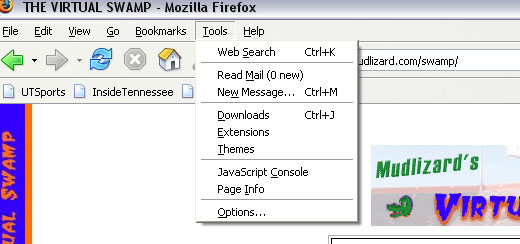
2. Select Options from the tools menu. In the options screen, select the
"Privacy" button. Expand the "Cookies" section, like so:
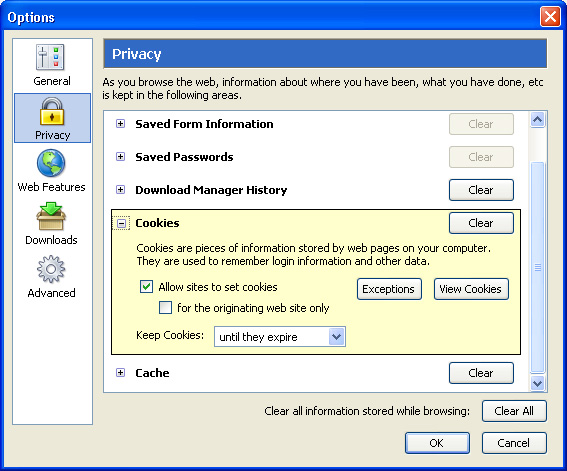
3a. To delete all cookies, simply press "Clear" in the cookies section
above.
3b. To delete individual cookies, press "View Cookies". You will see
the following screen:
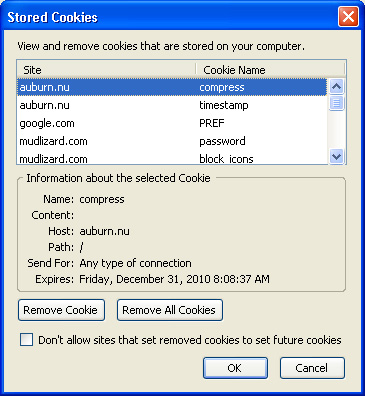
4. To delete an individual cookie, select it and press "Remove Cookie". You
may also delete all cookies from this screen by pressing the "Remove All
Cookies" button. The "Tools --> Options" menu in FireFox is the Mozilla
version of "Tools --> Internet Options" in IE.
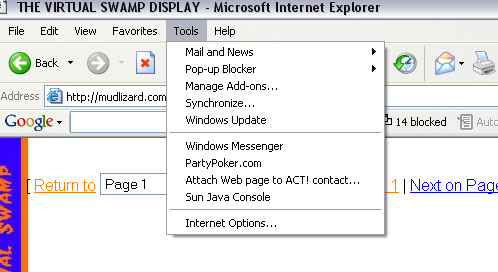
Clearing Cookies in Internet Explorer
1. Select the "Tools" menu in IE and select "Internet Options".
2. Click "Delete Cookies" from the menu that appears.
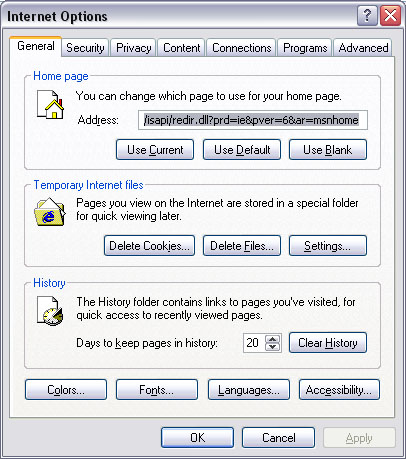
3. Click OK.
You will need to return to the profile center and re-enter your username and password to continue posting. You must do this after clearing cookies in either FireFox or IE.
Why is Enhanced Posting Not Working For Me?
The
first thing you should check is that you have enhanced posting turned on in the
profile center (/users/profiles2.pl).
You should see a configuration checkbox like this, "If you'd like enhanced
posting, check this box: (faster is unchecked)".
If it still does not work,
continue reading.
Enhanced posting is accomplished in Mudduck BBS using a
javascript package called Xinha (Xinha). This package does not
support every browser. Internet Explorer and Mozilla Firefox are known to be
supported. You should also make sure you have javascript turned on in your
browser. If it still does not work, MAKE SURE YOU ARE USING THE URL auburn.nu/mudlizard.com/vttw.net WITHOUT the WWW in front. If you are still having problems, we suggest you switch to either Internet
Explorer or Firefox and make sure you allow javascript. Xinha will not be
supported in Mudduck BBS. If it works for you that is great. If it does not,
sorry.